

WSL brings Windows development tools and a full Linux environment together on the same machine. However, a corporate VPN can disrupt this integration, and connecting to it may cause the WSL2 terminal to lose Internet connectivity.
The problem stems from WSL2’s networking architecture. The Linux distribution runs inside a lightweight virtual machine with its own virtual network interface, and many VPN clients modify the Windows routing table or apply firewall policies that drop traffic from these virtual networks.
wsl-vpnkit addresses this without administrator privileges or changes to Windows settings by routing the Linux distribution’s traffic through a Windows process, so that the VPN treats it as traffic originating from the host itself.
This article explains how to install wsl-vpnkit and configure it as a systemd service, so that connectivity is restored automatically whenever the distribution starts.
This article is based on wsl-vpnkit version
v0.4.1, corresponding to the v0.4.1 release published in the project’s official repository.
How WSL2 accesses the Internet
By default, WSL2 uses NAT networking, giving the virtual machine its own private subnet, separate from Windows. Applications in the Linux distribution use the Linux kernel’s TCP/IP stack, which sends packets through the eth0 interface. These cross the Hyper-V bus through the virtual switch and reach Windows through the vEthernet (WSL) adapter. WinNAT then translates the Linux distribution’s private addresses into those of the host, and the Windows TCP/IP stack routes the packets to the VPN adapter.
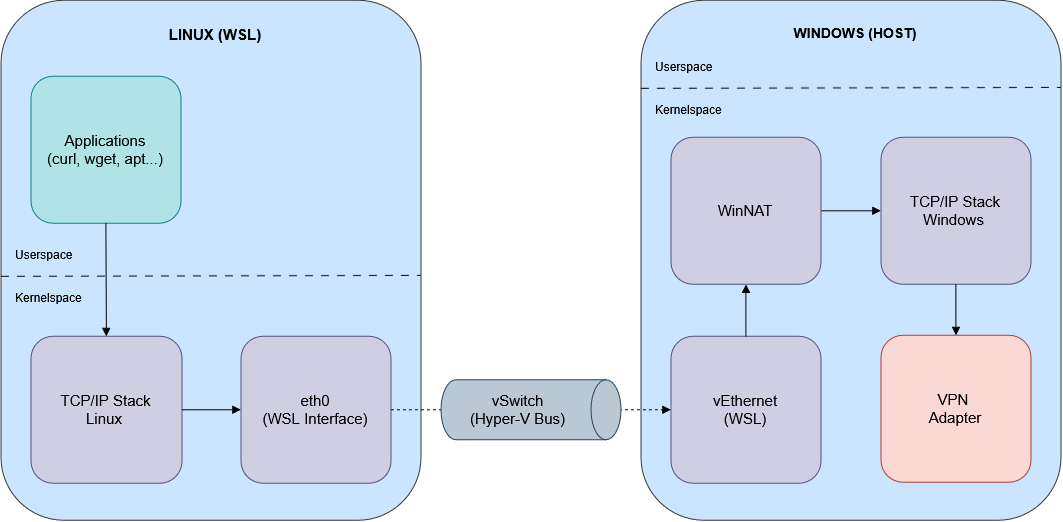
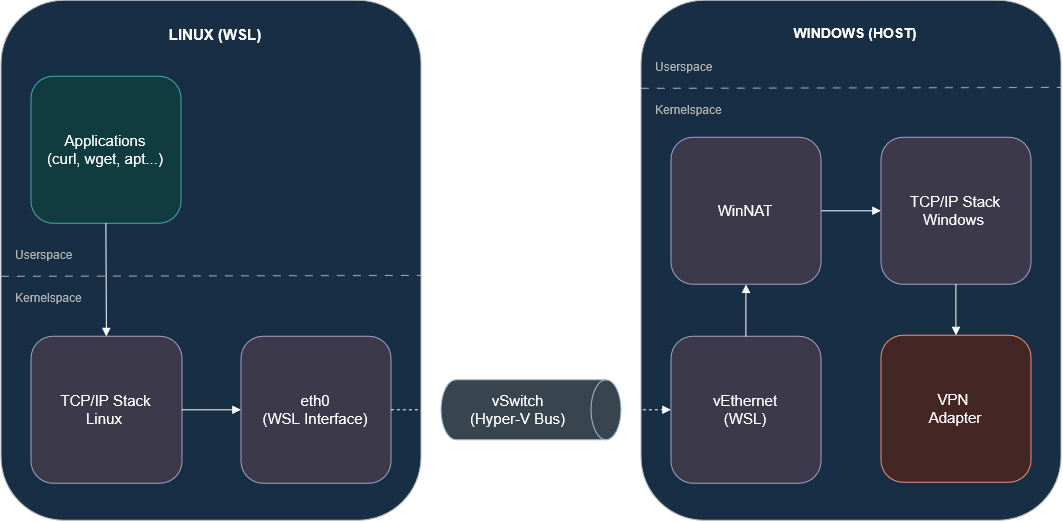 WSL2 Internet access in NAT mode (default)
This entire path runs in Windows kernel space, so WSL2 traffic does not originate from a Windows application. It arrives as network packets through a virtual interface. When the VPN client changes routes or applies policies that only allow traffic from its own interfaces or from specific applications, these packets may be left outside the tunnel or dropped.
Before installing wsl-vpnkit
Recent versions of WSL include two native options specifically designed to improve VPN compatibility: mirrored networking and DNS tunneling. It is worth identifying which part of the connection is failing, since these options may be sufficient without having to use wsl-vpnkit.
Diagnosing connectivity
With the VPN connected, run the following checks from the WSL terminal:
1
2
3
4
5
6
7
8
# 1. Connectivity to a public IP address (without DNS resolution)
ping -c 3 1.1.1.1

# 2. Name resolution
nslookup github.com

# 3. End-to-end HTTPS access
curl -sSI https://github.com
Some corporate networks block ICMP traffic. If
pingfails but the network appears to be working,curl -sSI https://1.1.1.1can be used as an alternative to check connectivity by IP address.
The results of these tests help identify the type of problem:
| IP connectivity | DNS resolution | HTTPS access | Diagnosis |
|---|---|---|---|
| OK | OK | ERROR | Corporate proxy |
| OK | ERROR | ERROR | DNS issue |
| ERROR | ERROR | ERROR | Routing issue |
WSL2’s native solution
Microsoft’s guide to setting up WSL in enterprise environments recommends adjusting the advanced networking options in the [wsl2] section of %UserProfile%\.wslconfig, which can be created manually if it does not exist. These options require Windows 11 22H2 or later and WSL 2.0.9 or later, which you can check with wsl --version. In corporate environments with a VPN, it is common to enable the following three options together, regardless of the diagnostic results:
1
2
3
4
[wsl2]
networkingMode=mirrored
dnsTunneling=true
autoProxy=true
networkingMode=mirrored: mirrors Windows network interfaces into Linux, improving compatibility in complex networking environments.dnsTunneling=true: obtains DNS information through virtualization features rather than network packets.autoProxy=true: automatically applies the HTTP proxy configured in Windows to WSL.
Mirrored mode changes the network layout compared with NAT mode. The vEthernet (WSL) adapter and WinNAT address translation disappear, and Linux sees mirrored Windows interfaces with the same IP addresses. Packets still cross the Hyper-V bus, but are delivered directly to the Windows TCP/IP stack.
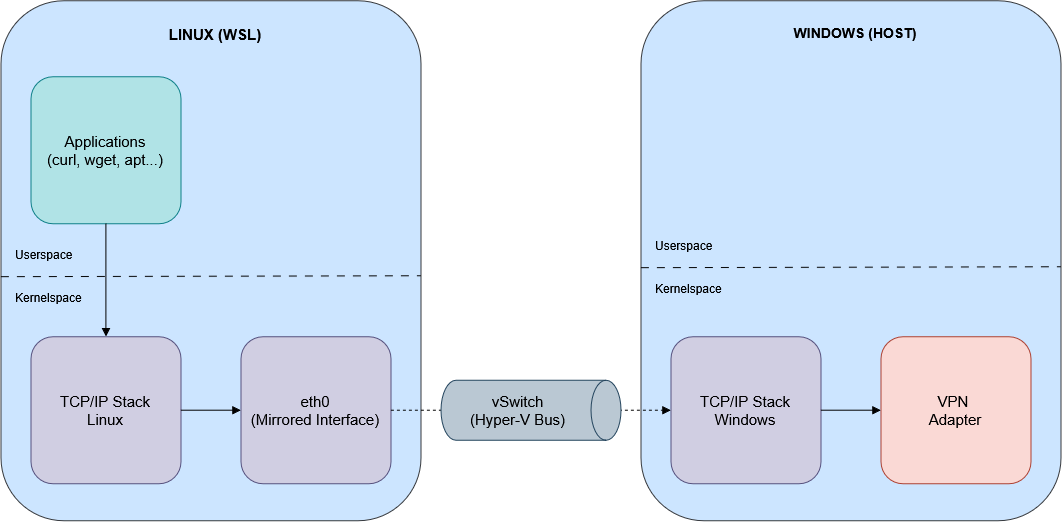
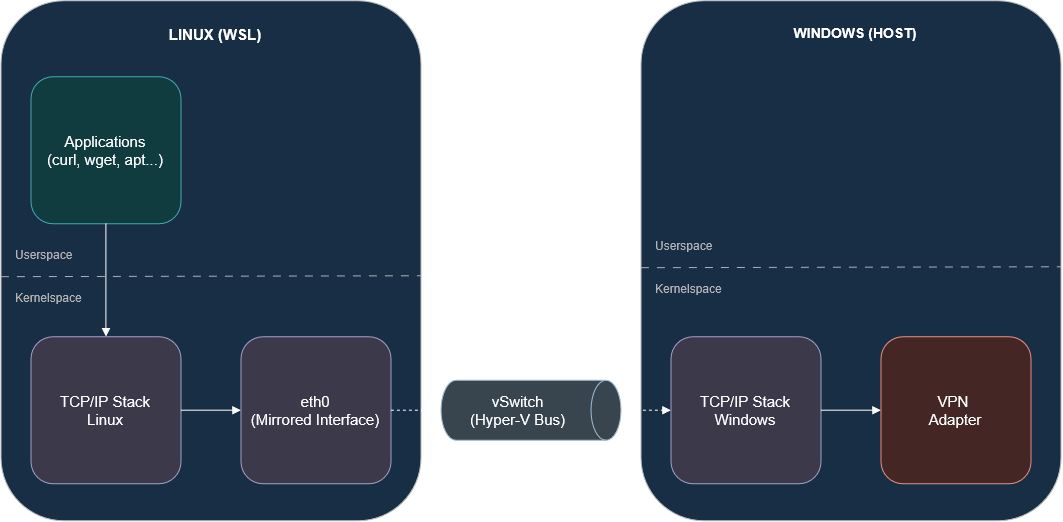 WSL2 Internet access in mirrored mode
To apply the changes, restart WSL and then repeat the diagnostic checks:
1
wsl --shutdown
Certificate errors when connectivity and DNS are working are often caused by corporate TLS inspection. These cannot be resolved through
.wslconfig. Instead, the corporate root certificate must be imported into the distribution.
When the native solution is not enough
The .wslconfig options improve WSL2’s compatibility with VPNs, but, as the previous diagrams show, they do not change a fundamental aspect of its architecture. In both NAT and mirrored mode, traffic leaves the virtual machine through a Hyper-V virtual network adapter and reaches the Windows networking stack at the kernel level, without passing through a user-space process. Many VPN clients and security solutions apply their rules at layers of the networking stack that this traffic does not traverse, or identify it as coming from an external interface rather than a local process.
How wsl-vpnkit solves the problem
wsl-vpnkit bypasses WSL2’s virtual network adapter entirely. Instead, it relies on two components from gvisor-tap-vsock:
wsl-vm: is thegvforwardercomponent, renamed for wsl-vpnkit. It runs inside the Linux distribution and forwards packets from the TAP interface to the Windows process. Thewsl-vpnkitscript configures that interface, the default route, and DNS redirection.wsl-gvproxy.exe: is thegvproxycomponent, renamed for wsl-vpnkit. It implements a TCP/IP stack in Windows user space, receives packets from the Linux distribution, and opens the corresponding connections as normal Windows sockets.
The key is how these components communicate. Rather than using the virtual network, they use the standard input and output of the wsl-gvproxy.exe process, which the Linux distribution launches through WSL’s interoperability with Windows executables and which travels over a vSock channel on the Hyper-V bus. As a result, the VPN and firewall cannot distinguish WSL2 connections from those of any other Windows application, and route them through the tunnel under the same policies as the rest of the host’s traffic.
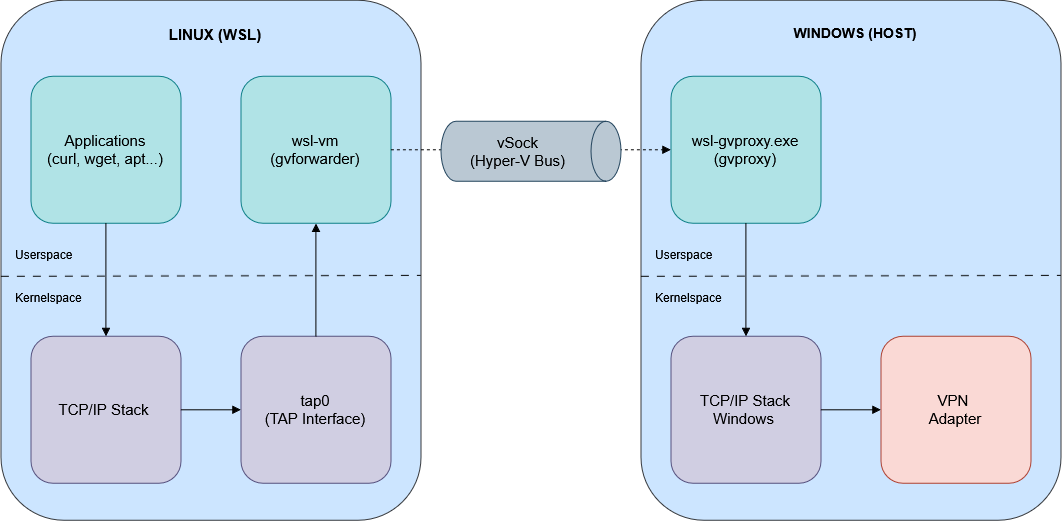
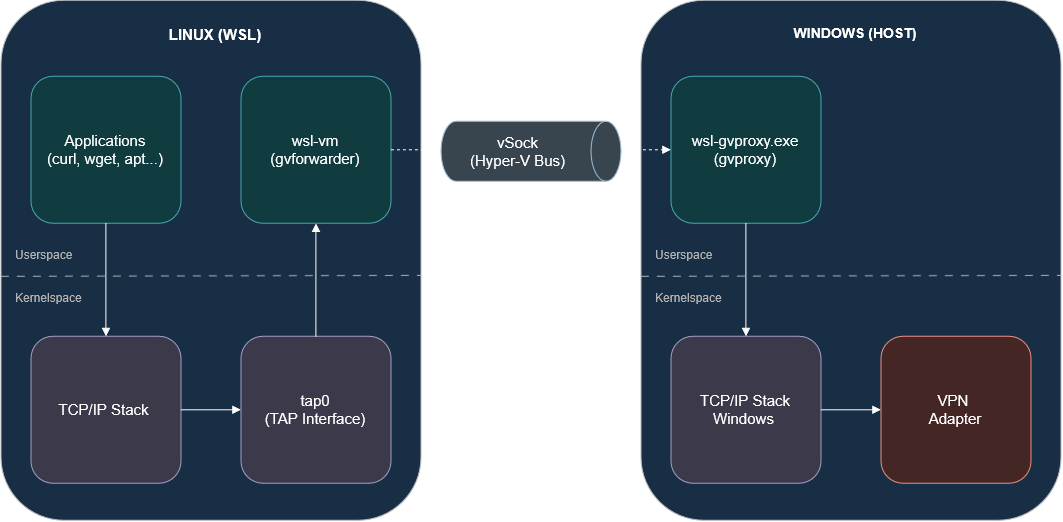 WSL2 Internet access through wsl-vpnkit
Unlike the previous two layouts, traffic here does not enter Windows as network packets through an interface, but from user space through wsl-gvproxy.exe. This approach also has other advantages: it does not require administrator privileges, does not change Windows settings, and works independently of the VPN client being used.
wsl-vpnkit only restores network connectivity. Any required proxy settings and corporate certificates must be configured separately in the Linux distribution.
If mirrored mode was previously tried without success, remove
networkingMode=mirroredfrom.wslconfigand runwsl --shutdownbefore installing wsl-vpnkit, since it is designed for WSL2’s default NAT networking mode.
Installing wsl-vpnkit as a systemd service
wsl-vpnkit can be installed in two ways: as a separate WSL distribution or as a script inside an existing Linux distribution. This article uses the second option, leaving execution to systemd so that it starts automatically with the distribution. The commands are intended for Ubuntu and Debian.
Installation requires Internet access from WSL to install packages and download wsl-vpnkit. If the VPN blocks connectivity, it can be temporarily disconnected during these steps, or the
wsl-vpnkit.tar.gzfile can be downloaded from Windows and copied to\\wsl.localhost\<distribution>\home\<user>.
Enabling systemd in the Linux distribution
WSL has officially supported systemd since version 0.67.6, but support in the installed WSL version does not mean it is enabled in every distribution. To check, query the name of the process with PID 1:
1
ps -p 1 -o comm=
If the result is systemd, it is enabled and the next step can be followed. Otherwise, enable it by adding the following to the distribution’s /etc/wsl.conf file:
1
2
[boot]
systemd=true
Next, restart WSL from PowerShell and reopen the distribution:
1
wsl --shutdown
After restarting, systemctl status should work correctly.
Installing dependencies
The wsl-vpnkit script needs several networking utilities: iproute2 and iptables to configure the TAP interface, routes, and DNS redirection, and iputils-ping, dnsutils, and wget for the connectivity checks it runs at startup.
1
2
sudo apt update
sudo apt install -y iproute2 iptables iputils-ping dnsutils wget
Downloading wsl-vpnkit
Create the installation directory and download the corresponding release:
1
2
3
4
5
sudo mkdir -p /opt/wsl-vpnkit
cd /opt/wsl-vpnkit

VERSION=v0.4.1
sudo wget https://github.com/sakai135/wsl-vpnkit/releases/download/$VERSION/wsl-vpnkit.tar.gz
The package contains a complete distribution, but only four files are needed for installation as a script: the wsl-vpnkit script, the wsl-vm and wsl-gvproxy.exe binaries, and the wsl-vpnkit.service service template. Extract only these files and remove the archive:
1
2
3
4
5
6
7
sudo tar --strip-components=1 -xf wsl-vpnkit.tar.gz \
  app/wsl-vpnkit \
  app/wsl-gvproxy.exe \
  app/wsl-vm \
  app/wsl-vpnkit.service

sudo rm wsl-vpnkit.tar.gz
Configuring the service
The wsl-vpnkit.service template included in the release is configured for installation as a distribution, with the lines for installation as a script commented out. The following command comments out the first variant, enables the second, and adjusts the paths to /opt/wsl-vpnkit:
1
2
3
4
5
6
7
sudo sed -i \
  -e 's|^ExecStart=/mnt/c/Windows/system32/wsl.exe.*|#&|' \
  -e 's|^#ExecStart=/full/path/to/wsl-vpnkit|ExecStart=/opt/wsl-vpnkit/wsl-vpnkit|' \
  -e 's|^#Environment=.*|Environment=VMEXEC_PATH=/opt/wsl-vpnkit/wsl-vm GVPROXY_PATH=/opt/wsl-vpnkit/wsl-gvproxy.exe|' \
  wsl-vpnkit.service

sudo cp /opt/wsl-vpnkit/wsl-vpnkit.service /etc/systemd/system/wsl-vpnkit.service
The resulting file, which can be viewed with cat /etc/systemd/system/wsl-vpnkit.service, should look like this:
1
2
3
4
5
6
7
8
9
10
11
12
13
14
15
16
17
[Unit]
Description=wsl-vpnkit
After=network.target

[Service]
# for wsl-vpnkit setup as a distro
#ExecStart=/mnt/c/Windows/system32/wsl.exe -d wsl-vpnkit --cd /app wsl-vpnkit

# for wsl-vpnkit setup as a standalone script
ExecStart=/opt/wsl-vpnkit/wsl-vpnkit
Environment=VMEXEC_PATH=/opt/wsl-vpnkit/wsl-vm GVPROXY_PATH=/opt/wsl-vpnkit/wsl-gvproxy.exe

Restart=always
KillMode=mixed

[Install]
WantedBy=multi-user.target
The VMEXEC_PATH and GVPROXY_PATH variables tell the script where to find the binaries, since it looks for them in /app by default, the path used when installed as a distribution. Restart=always makes systemd restart the service if it stops, and KillMode=mixed allows the script to restore WSL2’s original network configuration when stopped.
Starting the service
Finally, reload the systemd configuration and enable the service to start with the Linux distribution, starting it immediately as well:
1
2
sudo systemctl daemon-reload
sudo systemctl enable --now wsl-vpnkit
Verification
The service status should show active (running):
1
systemctl status wsl-vpnkit
At startup, the script runs a series of connectivity checks whose results are recorded in the service journal:
1
journalctl -u wsl-vpnkit -b | grep check
The Linux distribution’s default route should now point to the wsl-vpnkit gateway (192.168.127.1) through the TAP interface:
1
ip route show default
With the VPN connected, repeat the initial diagnostic tests to confirm that connectivity has been restored:
1
2
3
ping -c 3 1.1.1.1
nslookup github.com
curl -sSI https://github.com
Conclusion
WSL2 losing connectivity when connected to a corporate VPN stems from its networking architecture. Traffic reaches Windows as network packets through a virtual interface, so many VPN clients do not treat it as traffic originating from the host itself. The first step is therefore to diagnose which part of the connection is failing and try WSL’s native options, mirrored networking, DNS tunneling, and autoProxy, which are sufficient in many environments and require no additional software.
When these options are not enough, wsl-vpnkit provides an alternative by moving traffic to a Windows user-space process, allowing the VPN and firewall to treat it like traffic from any other application on the host, without administrator privileges or changes to Windows settings. Installed as a systemd service, connectivity is restored automatically whenever the distribution starts, making it a transparent and practical solution for everyday use.